
#Tables
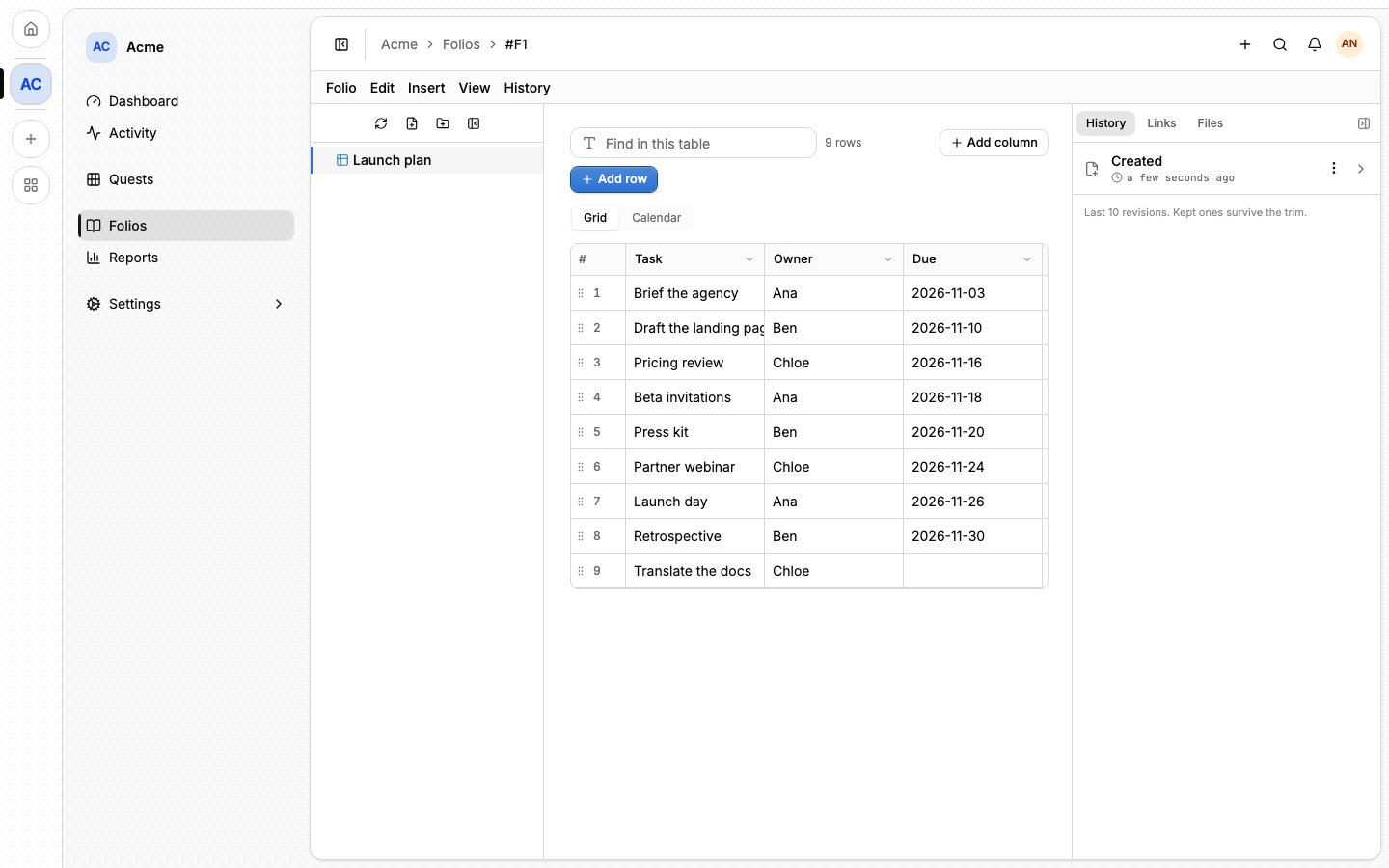
A table is a folio made of rows: a comparison of options, an inventory, a reading list. Each row is its own record with typed cells, so you can sort and filter it and change one row without touching the others. An agent can do the same, one row at a time. A calendar is the same kind of folio shown as a month: its rows are entries laid out by their date.
A table has what every folio has: a title, a summary, a place in the tree, links, files and history. What it does not have is a Markdown body.
When to use a text folio instead. Prose, a decision and its reasons, a runbook: anything read from top to bottom. A table is for a list you will add to or change row by row. If you find yourself maintaining a Markdown table by hand, it wants to be a table.
#Creating a table
- At the top of the tree, open New folio and choose New table, or right-click a directory and choose New table.
- The table opens with one text column, Name. Rename it, add the columns you need, and start adding rows.
A table is always its grid. For dated entries, create a calendar instead: see Calendars.
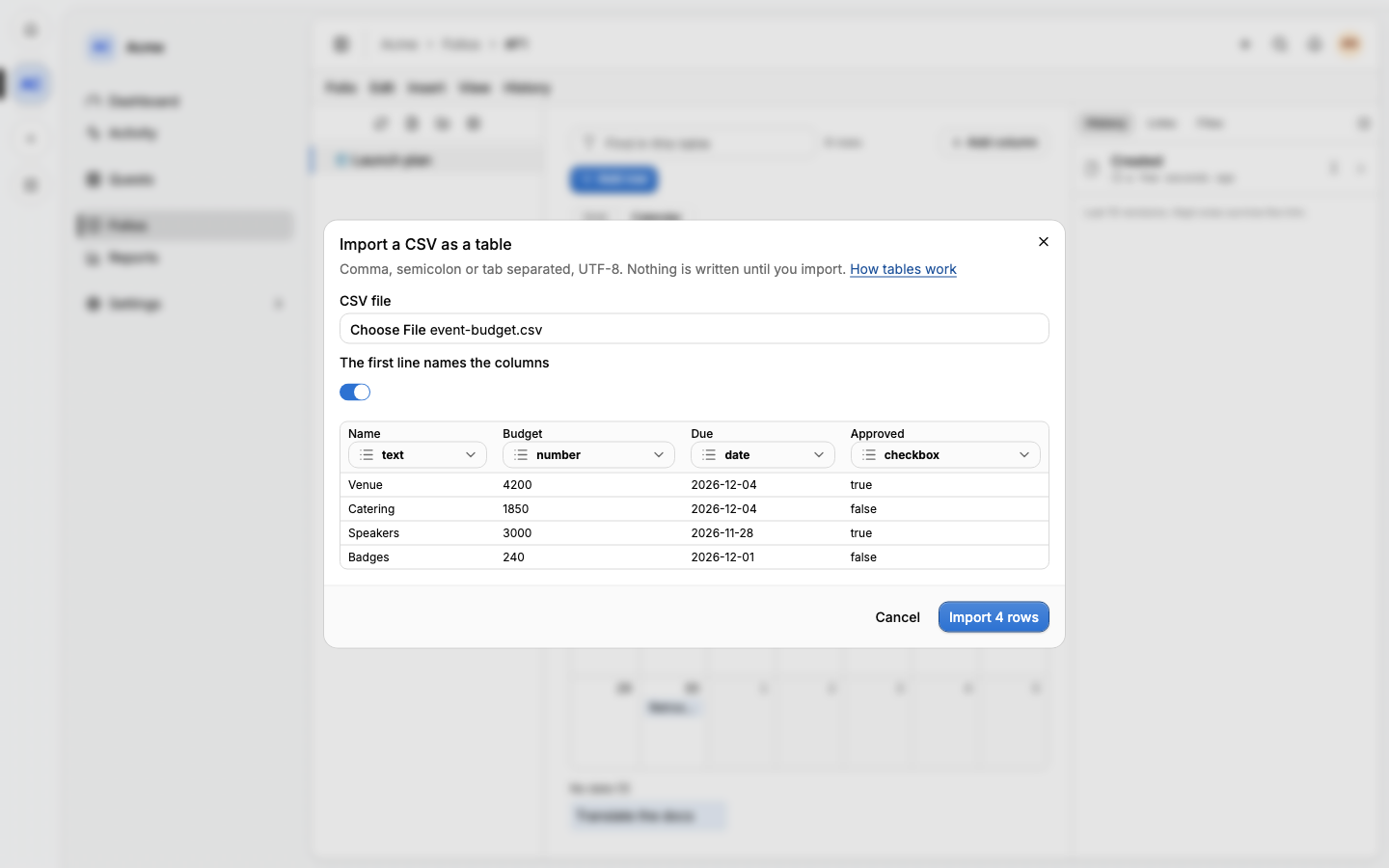
To start from a spreadsheet instead, choose New folio ▸ Import CSV…, or
drop a .csv file on the tree or on a directory. See
Import and export.
#Columns
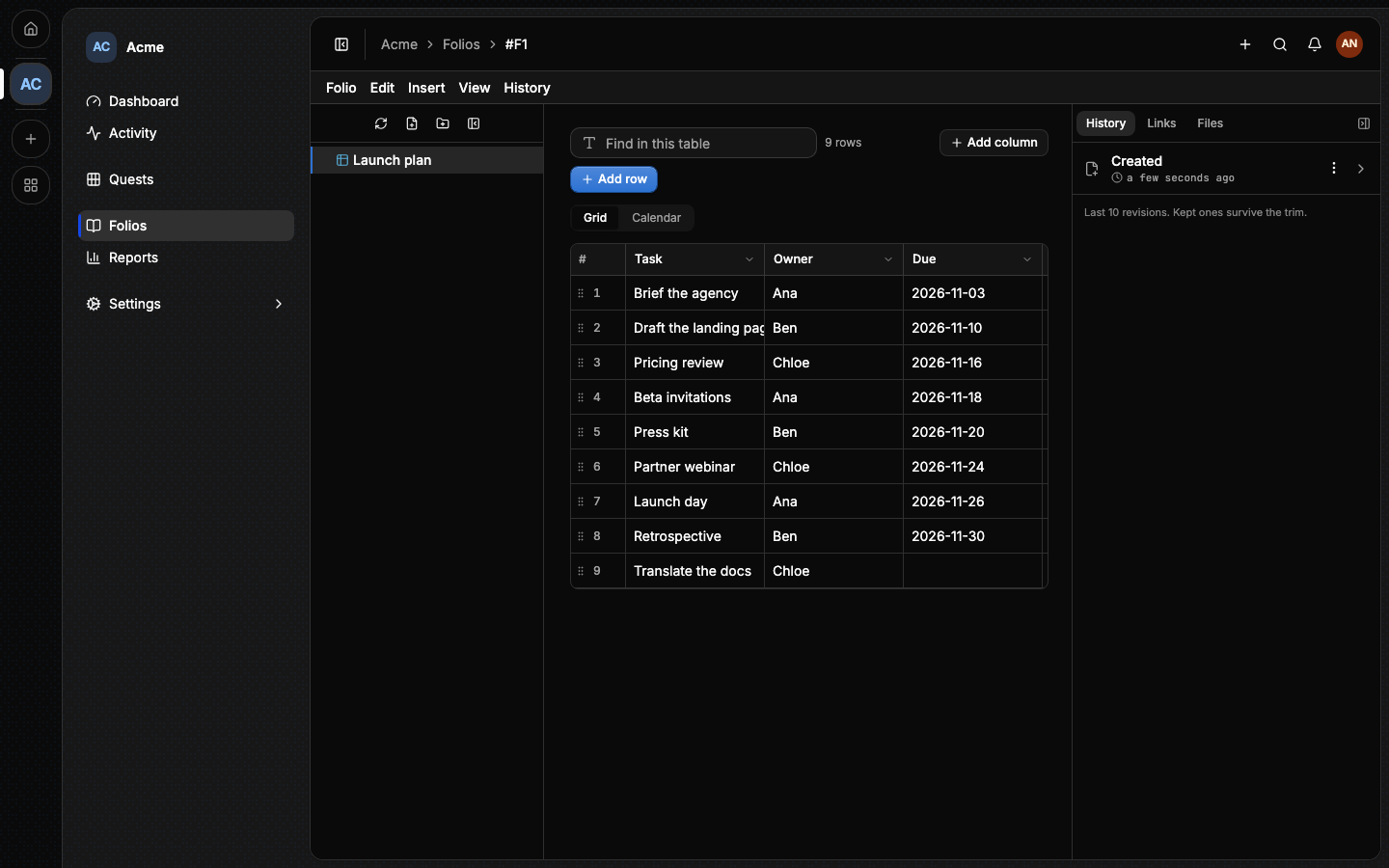
Each column has a name and a type. Add column above the grid adds a text column; a column's header menu renames it, changes its type, moves it left or right, sorts by it, and deletes it.
| Type | Holds |
|---|---|
| text | Any text, up to 2,000 characters |
| number | A number |
| checkbox | Ticked or not |
| date | A day, or a day and a time when the column has a time |
| select | One of a list of options you set with Edit options… |
| reference | A reference to an item of the project: #Q12, #F12, #E3, … |
Changing a column's type converts nothing. Every cell that still makes sense under the new type keeps its value; the others read as empty, and Lore tells you how many before you confirm. Change the type back and they return.
A reference cell is a link: it opens what it names, shows its preview on hover, and the item it names lists the table among its backlinks.
#Rows and cells
Add row adds one at the bottom; a row's number opens a menu to insert a row below it or delete it. Drag a row by its handle to move it. Each row keeps its number for good, so "row 12" means the same row tomorrow, and a deleted row's number is never given to another.
Click a cell to select it, and double-click it or press Enter to edit it.
There is nothing to save: a cell is written when you leave it or press
Enter. The keyboard works as in a spreadsheet:
| Keys | Does |
|---|---|
| Arrows | Move between cells; with Shift, select a range |
Enter |
Edit the cell, then write it and move down |
Tab |
Write and move right |
Escape |
Leave the cell as it was |
| Typing | Starts editing the selected cell with that letter |
Delete |
Empties the selected cells |
⌘C / ⌘V |
Copy or paste a cell or a range, to and from a spreadsheet |
If someone else changed the same row while you were editing it, your value is not lost: the row is reloaded, and what you typed stays in the cell, marked, for you to write again.
#Find and sort
Find in this table above the grid (or Edit ▸ Find in folio) keeps the rows that hold your text in any cell. A column's header menu sorts by it. Both are yours alone: they live in the page's address, so a link carries them, and nobody else's view changes.
#Calendars
A calendar is a folio of rows shown as a month. Open New folio and choose New calendar, or right-click a directory and choose New calendar. It opens on the current month, with two columns: Title, a text column that names each entry, and Date, the date it sits on.
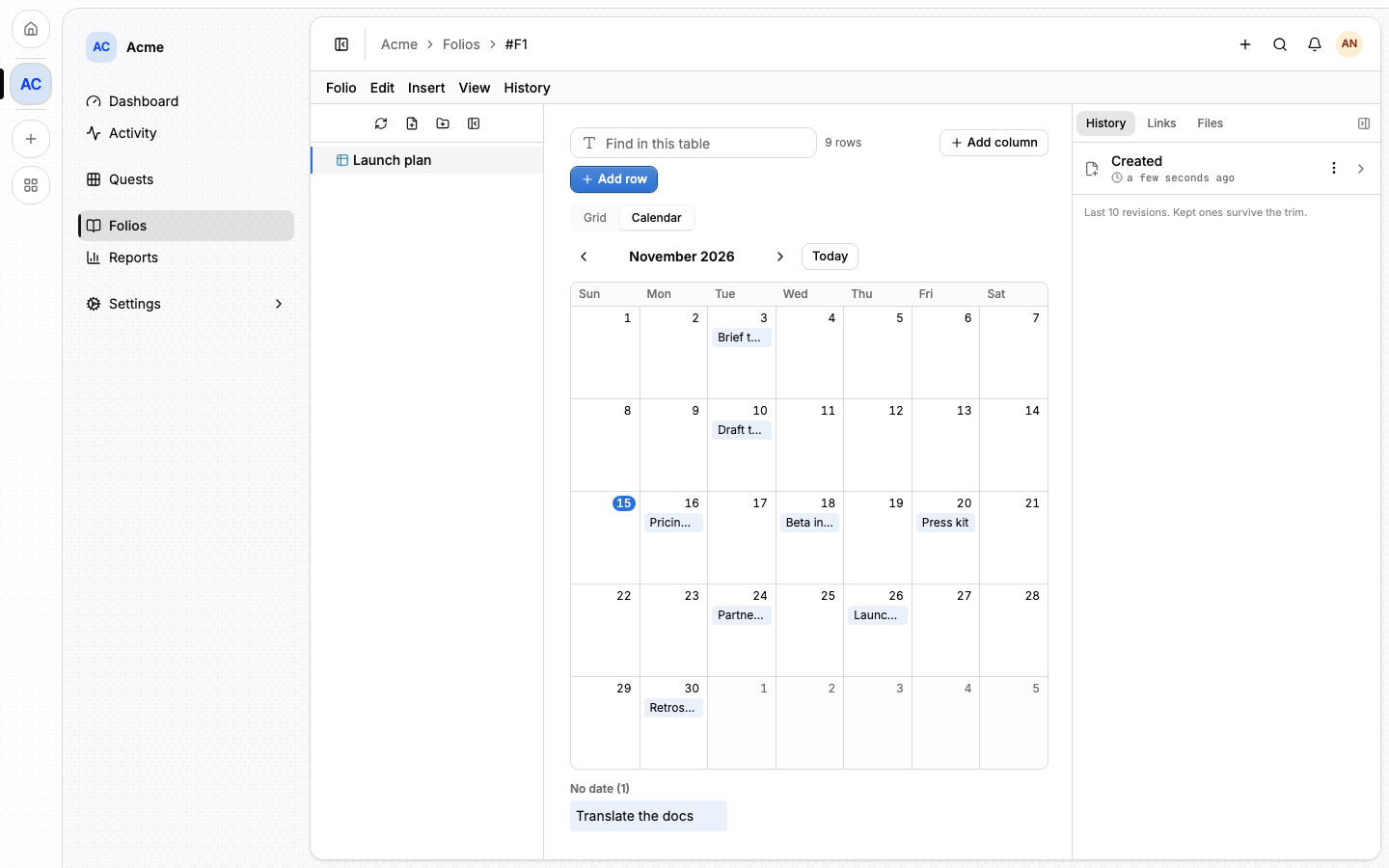
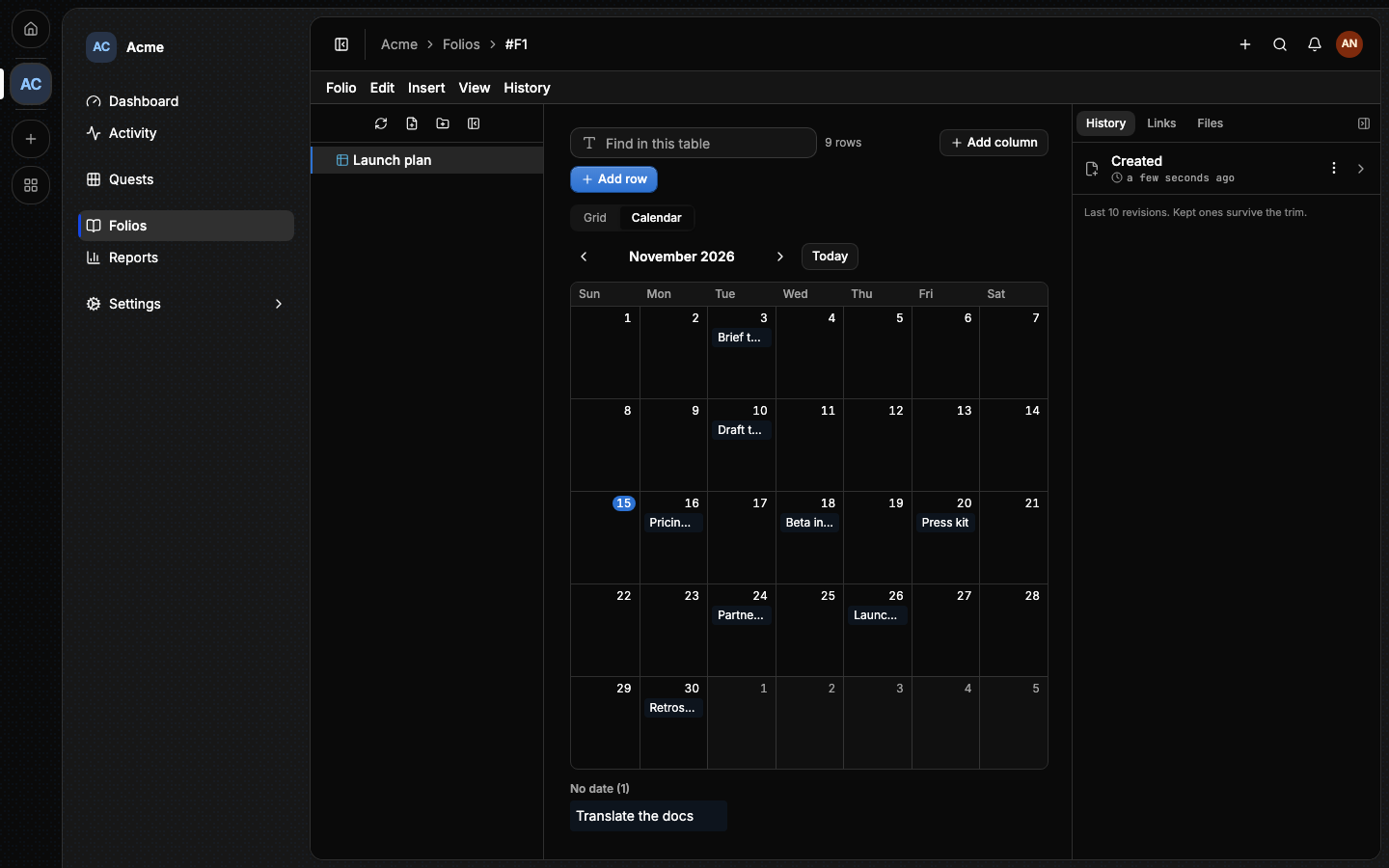
- Each row is an entry on the day of its date, titled by its first text column. A date with a time shows the time, in your time zone; a date without one stays on its day wherever you are.
- A day with more entries than fit shows +N more, which opens the day.
- Click an entry to edit its row, every cell at once, in a side panel.
- Click a day to add a row on that date.
- Drag an entry to another day to move it.
- Rows without a date are listed under the month, as No date, so nothing disappears.
A table and a calendar are fixed when the folio is created: a table never turns into a month, and a calendar never shows a grid. A calendar keeps its rows and columns like a table, so the command line and agents read and write it the same way.
The arrows move between days and Enter opens one. On a phone the month reads
as a list of days.
#Import and export
Import CSV… reads a file in your browser and shows its first 20 rows and the type guessed for each column (number, date, checkbox, else text), which you can change before importing. The first line names the columns unless you say otherwise. Comma, semicolon and tab separated files are all read, in UTF-8 with or without a byte order mark.
Folio ▸ Import rows… adds a file's rows to the open table. Its header must name the table's columns, without regard to case; a column the table has no name for is listed and skipped.
Rows are written in batches of 100. If a row is refused, the import stops and says which line of the file it reached; the rows imported before it stay.
Folio ▸ Export as .csv writes the whole table, every row in order, whatever
you are filtering: a select by its label, a reference by its code, a date as
YYYY-MM-DD, a checkbox as true or false. The file opens with accents
intact in a spreadsheet. A table with files exports as a .zip.
#History
A table keeps revisions like any folio: one per writing session, holding its columns and rows as they stood. In the History tab, View as table shows a revision as a read-only grid, and Revert to this puts its columns and rows back. Rows come back with their own numbers.
#Limits
A table is a list a person can read, not a database:
- 50 columns and 2,000 rows;
- 2,000 characters in a text cell;
- 50 options in a select column.
A table cannot be pinned to context or encrypted: its rows are searched and filtered by Lore itself, which a passphrase only you hold would prevent.
#From the command line
lore folio create --title "Hosting options" --summary "A comparison." \
  --type table --column Host:text --column Price:number --column 'Status:select:Open|Chosen'
lore folio create --title "Launch plan" --summary "Dates." --type calendar
lore folio row add F12 --rows '[{"Host":"Fly","Price":5}]'
lore folio row list F12 --where '[{"column":"Price","from":1,"to":10}]' --sort Price
lore folio row update F12 --row 3 --cells '{"Status":"Chosen"}'
lore folio column set F12 --operations '[{"op":"add","name":"Due","type":"date"}]'
lore folio import hosting.csv --summary "A comparison."
lore folio export F12 --csv > hosting.csv
Columns are named, never numbered. --rows @- reads the rows from standard
input. The full list is in The lore CLI.
#From an agent
A table is the right folio for a list the agent will add to or change row by row. An agent names columns by their names and rows by their numbers, and changes one row without reading or rewriting the others.
| Tool | What it does |
|---|---|
folio_create |
With type: "table" and columns, or type: "calendar" |
folio_get |
On a table: its columns, its row count and its first 50 rows |
folio_row_list |
Rows filtered, sorted and paged; a date range is the agenda |
folio_row_add, folio_row_update |
Add rows, or change some cells of one row |
folio_row_delete |
Delete rows by number |
folio_column_set |
Add, rename, retype, move or remove columns, in order |