#Dashboard
Every project opens on its Dashboard: a page of cards, where each card is a number, a list or a chart about the project, and a link to the page it came from. It is what you check to see how the project is doing without opening anything else.
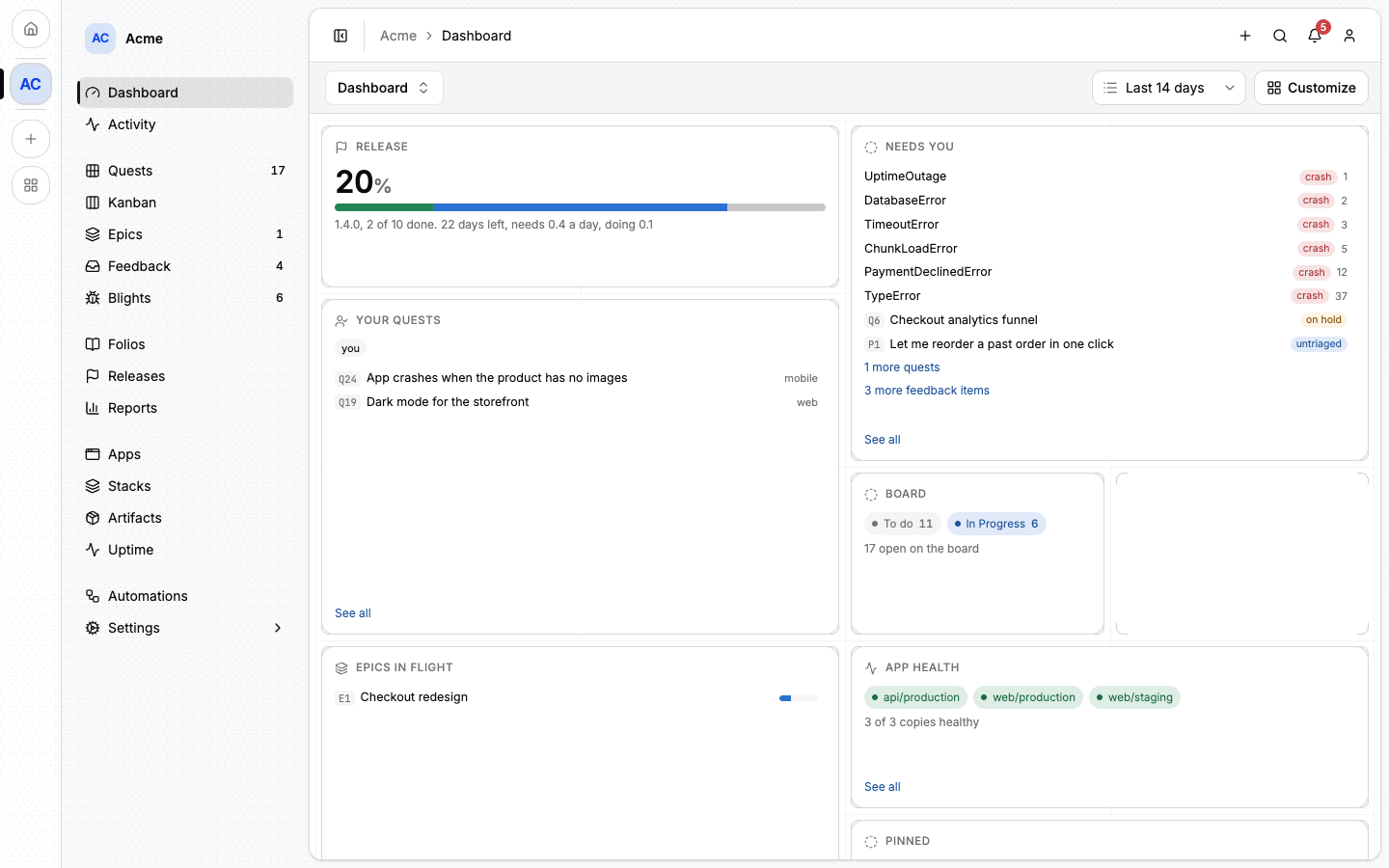
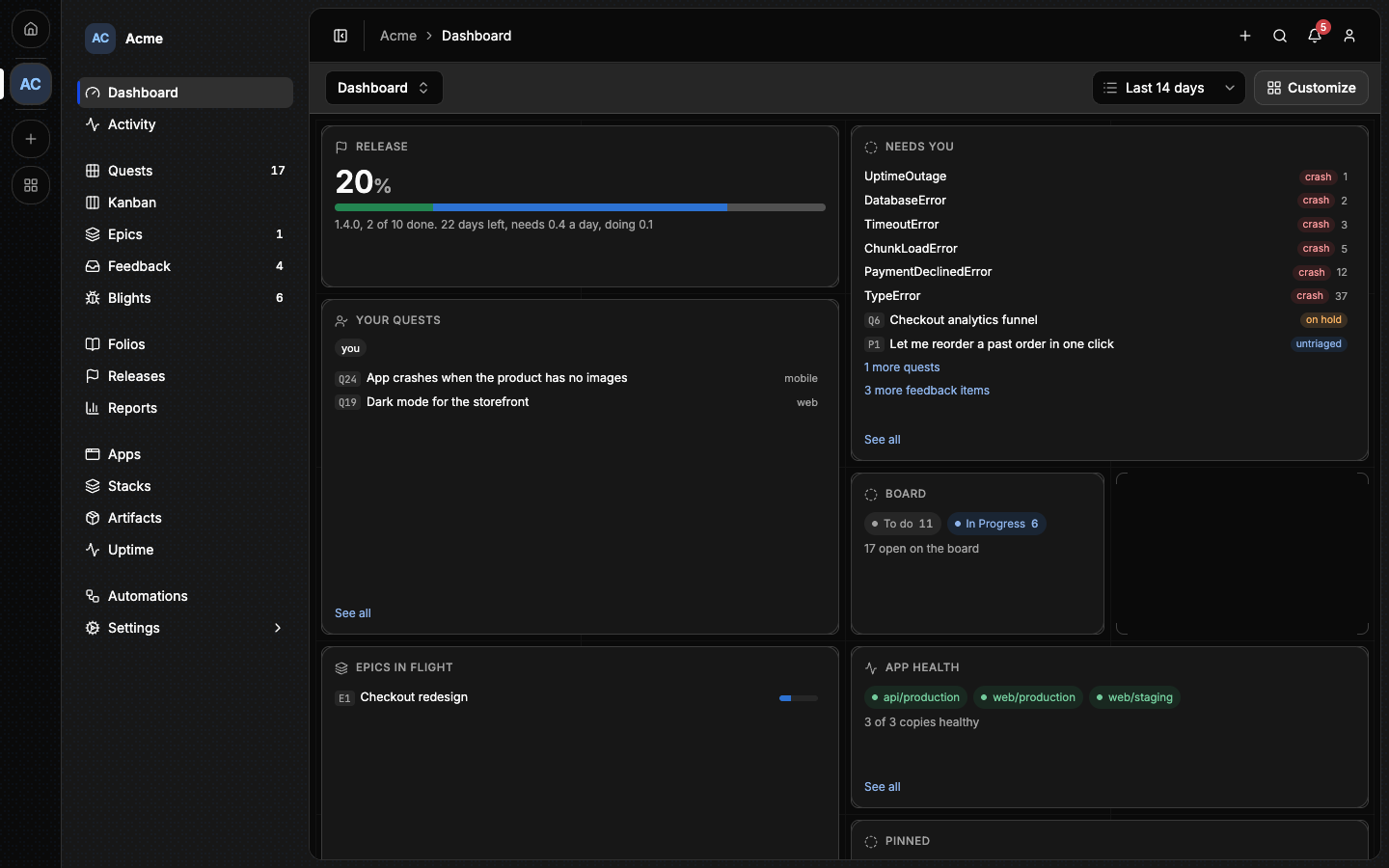
Lore sometimes calls the dashboard "the board". It is not the Kanban page of Quests.
#One dashboard for the whole team
A dashboard belongs to the project, not to you. Everybody in the project sees the same cards in the same places: add a card and it appears for your colleagues, remove one and it goes for them too. That is what lets "look at the dashboard" mean the same thing to two people.
There is no personal layout. If two of you want different cards, the dashboard holds both, or the project holds a second dashboard.
Two things do follow the reader:
- The time window, at the right of the header: Last 7 days, Last 14 days or Last 30 days. One window applies to the whole dashboard, so the cards agree with each other. It starts at 14 days, and your choice is remembered in your browser without changing anyone else's.
- The cards about you. Your quests and Reminders due show each reader their own.
#Reading it
A card links to the page its figure came from, so the dashboard is also a way into the project. Three things are worth knowing:
- A card with nothing to show stays hidden until it has something. Someone editing the dashboard sees it collapsed, with the reason.
- The figures are read when the page opens. Nothing refreshes by itself: reload the page for fresh numbers.
- Activity is a card. It shows the project's last recorded writes. The full feed, with its filters, is the Activity page in the sidebar.
An archived project has no dashboard: the page says so and links to what the project kept.
#The default dashboard
Until someone customizes it, a project's first dashboard is built by Lore, on every load, from what the project does: its capabilities and its data. What needs you, your own work, the flow of quests, the plan, the apps and the folios each get a place when there is something to show, and a card with nothing to say stays out.
A project with no recorded write in 90 days shows one line under the header, saying since when it has been quiet, and what it shipped last.
The default dashboard is read-only for everyone. To change it, click Customize: Lore copies the cards you see into the dashboard, once, and from then on it is yours to edit.
Only the first dashboard has a default. Any other dashboard opens empty, and you fill it with Add card.
#Editing a dashboard
Editing needs the permission Rename the project and edit its details
(project:update). The owner has it, and so does a rank created from the
Admin preset. A Member reads the dashboard and cannot change it: no
Customize, no Add card, no Edit, no card menu, no dragging.
To let other members curate the dashboard in your project, tick that permission for their rank in Settings ▸ Members ▸ Ranks. See Members.
With the permission, on a customized dashboard:
- Add card opens a panel. Pick a metric, point it at the thing you care about, then Save card.
- Edit turns edit mode on. Drag a card to move it, or open its menu for Change scope, Duplicate, a Size (one to three columns wide, one or two rows tall) and Delete card.
- Save leaves edit mode. Each change is stored as you make it, so there is nothing to lose by closing the page first.
⚠️ Delete card removes the card for everyone in the project. Lore asks before it does.
#Several dashboards
A project can hold several dashboards: one for the work, one for the apps, one for a release. The selector on the left of the header names the one you are looking at and lists the others. Pick one to open it.
Each dashboard has its own link. The first one is the project itself (/acme),
and every other is under it by name (/acme/dashboards/apps), so a link you
paste to a colleague opens the same dashboard for them.
The same menu manages them, for anyone who may edit:
| Entry | What it does |
|---|---|
| New dashboard | Asks for a name, 1 to 60 characters, and creates it after the last one |
| Rename dashboard | Renames the one on screen |
| Delete dashboard | Deletes the one on screen, after a confirmation, and opens the first one |
⚠️ Renaming a dashboard changes its link, and a link to the old name stops working.
⚠️ Deleting a dashboard deletes its cards with it, for everyone. The last dashboard cannot be deleted.
Dashboards keep the order they were created in. The first one stays the page the project opens on until it is deleted, and the next then takes its place. A first dashboard nobody named shows as Dashboard, in each reader's own language.
A member who cannot edit sees every dashboard in the selector and none of the three entries.
#The cards
Which cards you can add depends on the project's capabilities and your permissions: a card about releases needs releases turned on, a card about apps needs the Apps capability (see Capabilities). Most cards take a scope: the project, an epic, a release, a tag or an app. Flow cards read the same figures as Reports and link to the tab that explains them.
The Add card panel lists them in these groups.
Project
| Card | What it shows |
|---|---|
| Needs you | Held, stale and overdue work, crashes and feedback, in one list |
| Activity | The project's last recorded writes |
| Momentum | Recorded writes per day, as bars |
| Note | Markdown you write, for everyone who reads the dashboard |
Quests
| Card | What it shows |
|---|---|
| Active quests | Open quests in the project: to do plus in progress |
| On hold | How many of those are parked, waiting on something |
| Tag completion | Completed over total for one quest tag |
| Your quests | What the reader has accepted and not finished |
| Reminders due | The reader's reminders in the next seven days |
| Due soon | Open quests due in the next seven days |
| Recently shipped | The last completions, with their message |
Flow
| Card | What it shows |
|---|---|
| Burn-up | Created against completed, cumulative |
| Completed per week | The last eight weeks, as bars |
| Completed this week | Against the week before |
| Cycle time | Median hours from accepted to completed |
| Quests by area | By area, tag or priority |
| Board | Open quests per kanban column |
Epics & releases
| Card | What it shows |
|---|---|
| Epic progress | How far one epic has got |
| Release progress | How far one release has got |
| Release | The release this project is heading for, and its pace |
| Ready to publish | Open releases whose every quest is done |
| Epics in flight | Epics in progress, with their bar |
| Draft epics | Epics still being specified |
Knowledge
| Card | What it shows |
|---|---|
| Pinned | The first pinned folio, its summary |
| Recently edited | The last folios edited, by whom and when |
| New folios | Folios created in the time window |
| Folios by directory | How many folios each top-level directory holds |
Inbox
| Card | What it shows |
|---|---|
| Untriaged feedback | Reports waiting for triage |
| Open blights | For the project or a list of apps |
Apps
| Card | What it shows |
|---|---|
| App health | One pill per app instance: its last deploy, and whether it reports |
| Errors | Occurrences per day, with a mark at each deployment |
| Coverage | Line coverage over the recorded runs |
| Unique visitors | Per app, yesterday against the day before |
#Rules worth knowing
On hold is a subset of Active quests. Both count the same set of open quests, so "Active quests 12, On hold 3" reads as three of the twelve being stuck.
A quest carrying two tags counts in both. So tag cards do not add up to the project's quest count, and they are not meant to: a tag says what kind of work something is, and a quest can be two kinds at once.
⚠️ The two progress cards leave shelved quests out. Epic progress and Release progress show completed over total, with shelved quests excluded from the total. A quest you decided against leaves both sides of the division, so an epic can reach 100% with declined work left in it.
This differs from the tick bar on the Epics list, which draws all four buckets (done, in progress, open and shelved) over the full total. So the same epic can read 8 of 10 on its card and show ten ticks on the list, and neither is wrong. The card says what it divided by, under the number.
A card can point at something that is finished. An epic that has completed, or a release that has been published, keeps its card. Both are done by definition, so the number is settled rather than stale, and the card says which. To point it somewhere else, use Change scope in the card's menu.
#Reset to default
A customized first dashboard has Reset to default in the menu at the right of its header.
⚠️ Reset deletes every card on the dashboard, for everyone. Every member then sees the default dashboard again, built from what the project does. Lore asks before it does.
Reset exists on the first dashboard only, since it is the only one with a default to return to. Another dashboard is emptied card by card, or deleted.
#Next
- Reports: the fixed measures behind the flow cards.
- Quests: the work most cards count.
- Members: who may edit the dashboard.
- Notifications: what Lore tells you without being asked.